
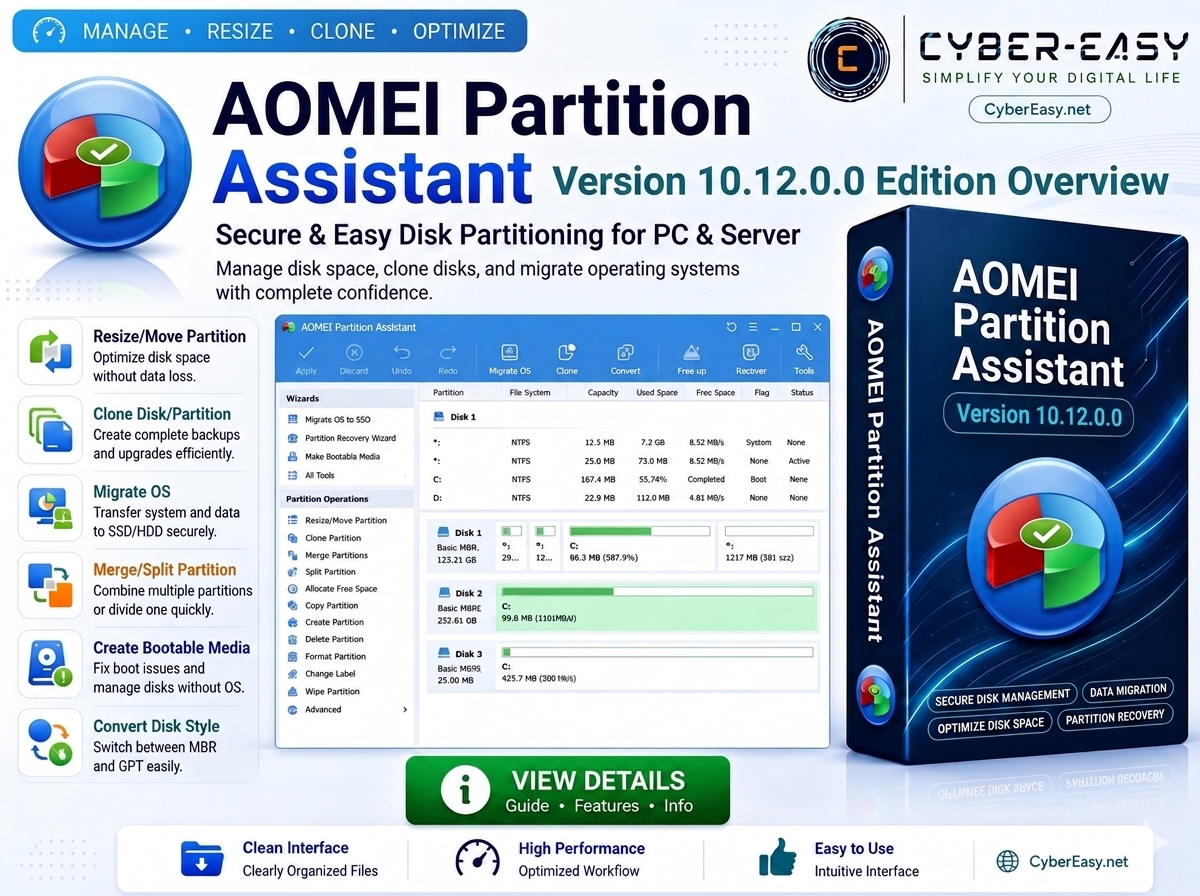
AOMEI Partition Assistant 10.12.0.0 is a Windows disk partition management tool designed for resizing, moving, cloning, converting, and managing hard drive or SSD partitions. It is useful for technicians, advanced users, system builders, and anyone who needs better control over Windows storage.
This software helps users manage disk space, migrate operating systems, create bootable media, and organize partitions with an easy-to-use interface.
AOMEI Partition Assistant 10.12.0.0 Overview
AOMEI Partition Assistant 10.12.0.0 provides a structured interface for reviewing disks, partitions, available storage space, and common disk-management operations on compatible Windows computers. The utility can be helpful when users need to resize a partition, move available space, create a new volume, or organize an existing storage layout. Before making any disk-level change, users should back up important data and carefully confirm the selected drive and partition.
Partition Resizing and Storage Management
The partition-management features can help users resize, move, create, delete, format, split, or merge partitions depending on the edition and supported configuration. These options may be useful when a system drive needs more available space or when a secondary disk needs a clearer storage structure. Users should review the proposed changes before applying them because an incorrect disk selection may affect important files or operating-system data.
Disk Cloning and System Migration
AOMEI Partition Assistant 10.12.0.0 may provide disk-cloning and operating-system migration options for supported editions. These features can help when replacing an older hard drive with an SSD or preparing a larger storage device. The destination disk should have enough capacity for the required data, and important files should be backed up separately before beginning any cloning or migration process.
MBR and GPT Disk Information
The utility may also include options for reviewing or converting disk styles such as MBR and GPT. These formats affect system compatibility, boot configuration, partition limits, and Windows installation requirements. Users should confirm whether their computer uses BIOS or UEFI and understand the current boot configuration before converting a system disk. A complete backup and recovery plan is strongly recommended.
Safe Preparation Before Disk Changes
Before using any partition utility, connect the computer to a stable power source, close unnecessary applications, and back up important documents to another drive or trusted cloud location. Laptop users should keep the charger connected. Users should also avoid interrupting a disk operation after it begins and should follow the official documentation for their selected edition and Windows version.
Official AOMEI Product Information
For official product information, supported editions, licensing details, feature comparisons, and current setup resources, visit the official AOMEI Partition Assistant website.
Main Features
- Resize and move partitions safely
- Clone disk and partition
- Migrate operating system to SSD or HDD
- Merge and split partitions
- Create bootable media for recovery tasks
- Convert disk style between MBR and GPT
- Optimize disk space and storage usage
- Useful for PC repair, system setup, and disk management
Setup Guide
- Backup: Back up important files before changing disk partitions.
- Source: Use the official developer page or another authorized source whenever possible.
- Security: Keep Windows security protection enabled and verify the publisher before installation.
- License: Use a valid license or official account if the selected edition requires one.
AOMEI Partition Assistant Information
Note: Use this software responsibly. Always use trusted or authorized sources and scan files before installation.