
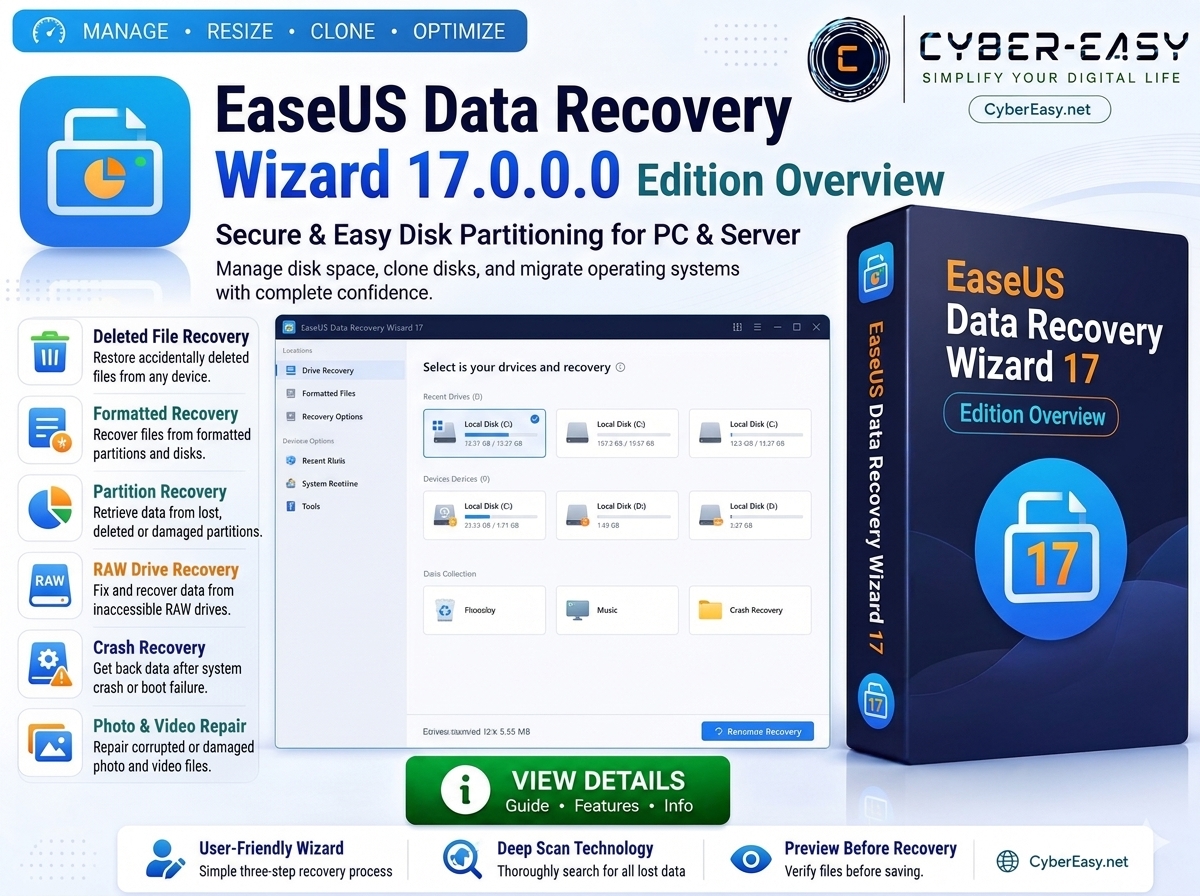
EaseUS Data Recovery Wizard 17.0.0.0 is a Windows data recovery utility designed to help users scan storage devices and recover deleted, lost, formatted, or otherwise inaccessible files. It can work with common storage devices such as internal hard drives, SSDs, external drives, USB flash drives, memory cards, and other supported media.
The software provides a guided recovery workflow for locating recoverable documents, photos, videos, audio files, archives, and other supported file types. Recovery results depend on the condition of the storage device and whether lost data has already been overwritten.
EaseUS Data Recovery Wizard 17.0.0.0 Overview
EaseUS Data Recovery Wizard 17.0.0.0 provides a structured interface for selecting a drive or storage location, scanning for recoverable data, filtering the results, previewing supported files, and saving selected recovered items to another safe location. Version 17.0 introduced improvements including faster scanning and quicker detection of lost partitions according to the developer’s release history.
Deleted and Lost File Recovery
The recovery workflow can help locate files that were deleted normally, removed after the Recycle Bin was emptied, or lost after other common data-loss events. For the best chance of recovery, users should stop writing new data to the affected drive as soon as possible because newly written files may overwrite recoverable data.
Formatted, RAW, and Lost Partition Recovery
EaseUS Data Recovery Wizard can scan supported formatted, inaccessible, RAW, deleted, or lost partitions for recoverable files. The software may be useful when a partition is no longer displayed normally in Windows or when data has become inaccessible after a formatting or partition-related problem. Recovery success varies depending on the storage condition, file-system damage, and whether the original data remains intact.
Storage Devices and File-System Support
The Windows edition supports recovery from common storage devices including HDDs, SSDs, external disks, USB drives, SD and memory cards, digital cameras, and other supported media. EaseUS documentation also lists file-system support including FAT variants, exFAT, NTFS, NTFS5, EXT2/EXT3/EXT4, HFS+, and ReFS depending on the product configuration and recovery scenario.
Scanning, Filtering, and File Preview
After selecting a storage location, the application scans for recoverable data and organizes detected files so users can review the results. Search and filter tools can help narrow large scan results, while preview support for compatible file types can help confirm whether a file is the correct item before recovery.
Safe Preparation Before Data Recovery
Do not install recovery software on the same drive from which important files were lost whenever another suitable drive is available. Avoid copying new files to the affected storage device, and save recovered files to a different drive so that recoverable data is not overwritten. If a drive is physically failing, making unusual noises, repeatedly disconnecting, or contains highly important data, consider professional data-recovery assistance instead of repeatedly scanning the device.
Official EaseUS Product Information
For official product information, supported editions, licensing details, system requirements, current features, and setup resources, visit the official EaseUS Data Recovery Wizard website.
Main Features
- Recover deleted and lost files from supported storage devices
- Scan HDDs, SSDs, external disks, USB drives, and memory cards
- Recover files from formatted, RAW, inaccessible, or lost partitions
- Search and filter large scan results
- Preview supported files before recovery
- Support common Windows and removable-media file systems
- Improved scanning performance and lost-partition detection in version 17.0
- Useful for personal recovery, PC repair, and technician workflows
Setup Guide
- Stop Using the Drive: Avoid writing new files to the affected drive after data loss.
- Install Location: When possible, install the recovery software on a different drive from the one being recovered.
- Recovery Location: Save recovered files to another drive instead of restoring them back to the affected storage device.
- Source: Use the official developer page or another authorized source whenever possible.
- Security: Keep Windows security protection enabled and verify the publisher before installation.
- License: Use a valid license or official account if the selected edition requires one.
EaseUS Data Recovery Wizard Information
Related CyberEasy Guides
Note: Data recovery is not guaranteed. Stop using the affected storage device when possible, save recovered files to another drive, and use trusted or authorized software sources.